

How to Organize Video Clips on Mac So You Can Find Them
How to organize video clips on Mac with folders by shoot date, four statuses, a tag vocabulary and highlights instead of cuts, in Finder or BetterLibrary.
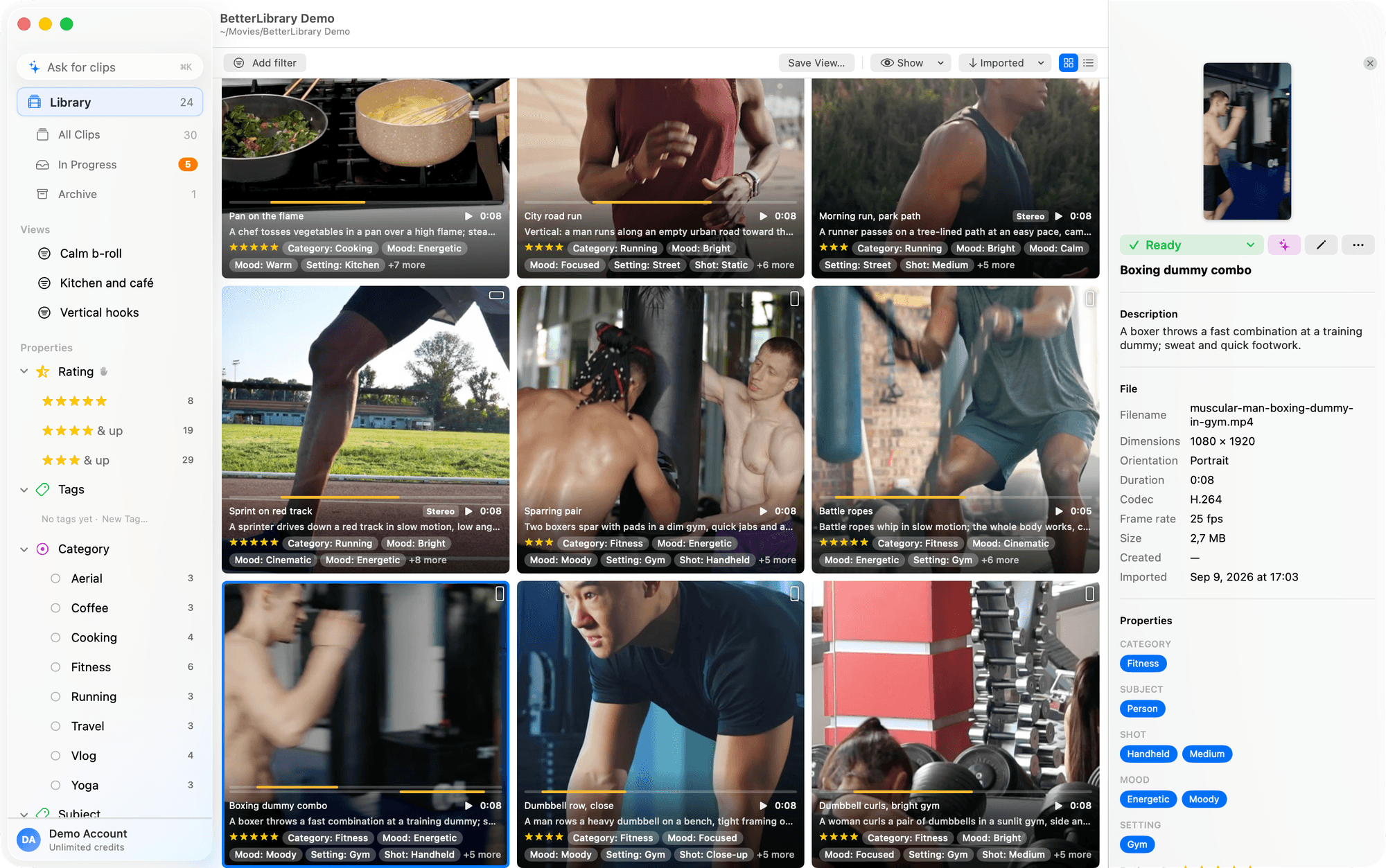
Organizing video clips on a Mac comes down to five habits: one folder per shoot named by its date, a status on every clip, a short tag vocabulary where every tag has a written meaning, highlights marked inside clips instead of cut into new files, and a way to find footage by describing it. All five work with Finder alone. BetterLibrary does each one with less typing, and since we built it for exactly this job, I'll show the Finder version first and then what changes in the app.
How to organize video clips on Mac in five moves
- File every shoot in a folder named by date and keep the originals untouched.
- Give each clip a status: New, Draft, Ready or Archived.
- Tag from a short vocabulary where every tag has a written meaning.
- Mark highlights inside clips instead of exporting cuts.
- Find footage by describing it, not by remembering the filename.
The order matters less than the discipline. Most people who ask me how to organize video clips on Mac already have a folder structure. What they don't have is a status, so every clip looks equally finished and equally unfinished. And they don't have a vocabulary, so tags pile up until nobody trusts them.
Why the pile stops working
You know the pile. The iPhone shoots into Photos. AirDrop dumps a second copy in Downloads. The mirrorless card gets copied to a folder called Footage with a subfolder called New that has been there for a year. Somewhere in there is the kettlebell shot you remember, the wide one where the light was good, and its name is IMG_4821.MOV.
Photos is fine for photos. It's a poor home for footage you'll edit, because it hides the file, and Finder is a poor library because it knows nothing about what's inside the file. The five moves below give Finder the little it needs to behave like a library, and they map one to one onto what BetterLibrary does.
Move 1: One folder per shoot, originals untouched
With Finder
Make one folder per shoot and put the date first so it sorts itself: 2026-08-14 Gym, Ana. Inside it, the files exactly as they came off the card or the phone. Copy from the card; don't move, and don't rename until the copy is verified. Keep the whole tree on one external SSD if your internal drive is small. The rule that matters: nothing ever edits, re-encodes or overwrites a file in these folders. Trims and exports go somewhere else.
In BetterLibrary
Drop the shoot folder on the window (or ⌘I, or paste files from Finder). BetterLibrary copies every video into the library's own originals/ folder, filed by year and month, and leaves your source folder alone. Before it copies anything it fingerprints the content, so if half the card is already in the library you get one Finder-style question, Skip, Keep or Cancel, instead of forty duplicates.
The library is one folder you own: library.db, a plain SQLite index, next to originals/, thumbnails/, renders/ and a settings.jsonc you can open in a text editor. Paths inside are relative. Close the library, move the folder to an SSD or a NAS, open it again, and everything is where you left it. One library per client or per year works well.
Video only. Photos stay wherever you keep them. (If your shoots are half stills, that's the honest limit to know about before you start.)
Move 2: A status on every clip
With Finder
Four Finder tags, four colours: New, Draft, Ready, Archived. New means you haven't looked at it. Draft means you've touched it (named it, tagged it) but haven't signed off. Ready means you'd use it in an edit without watching it again. Archived means kept, but out of the way.
Make a Smart Folder that shows Draft and New across the whole tree. That's your to-do list. When it's empty you're done sorting.
In BetterLibrary
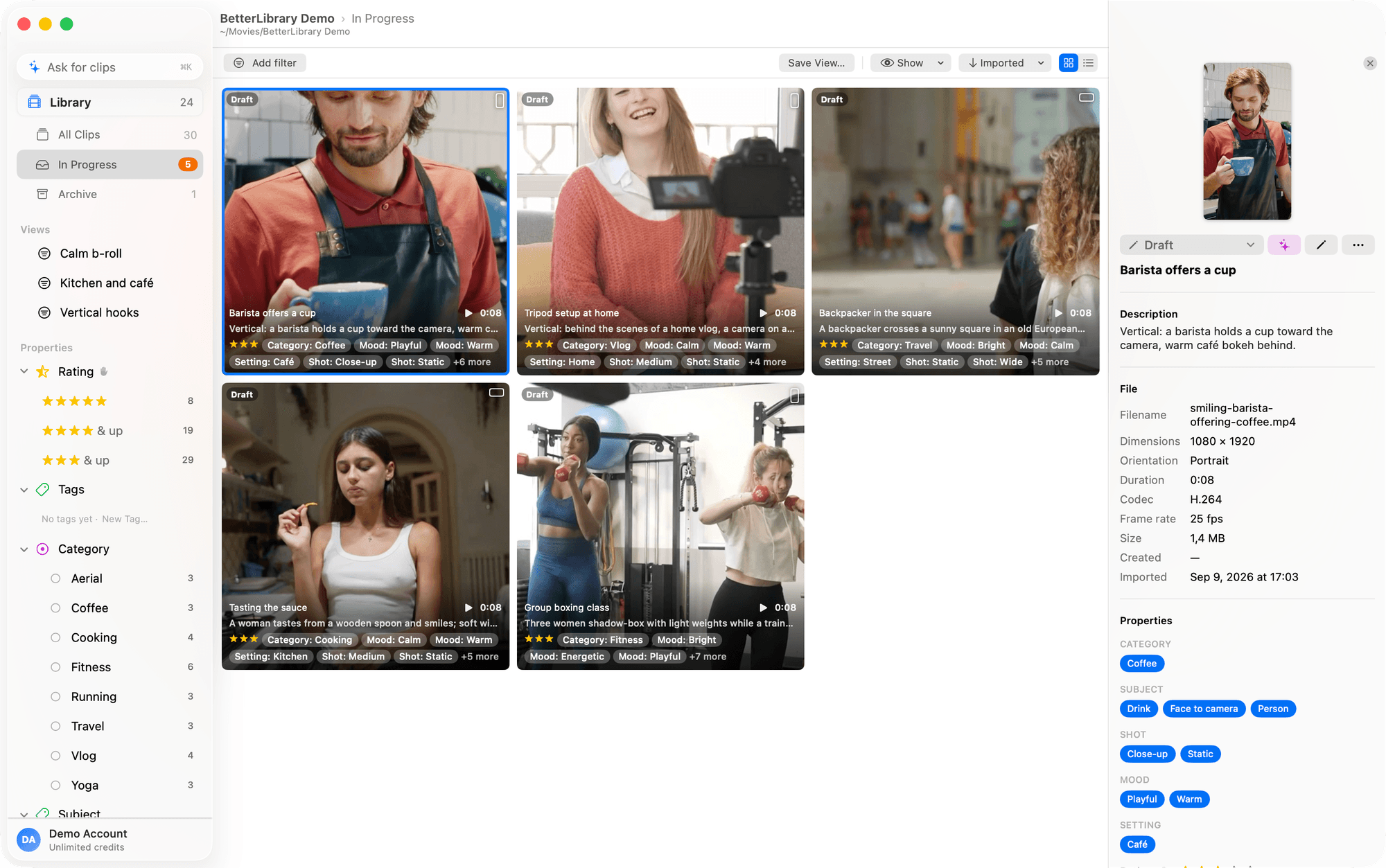
The statuses are the same four, built in. The sidebar has four shelves: Library shows Ready clips only, In Progress shows New and Draft, then Archive and All Clips. The In Progress count is the number of decisions left.
Approving is one keystroke: select and press ⌘R. A row of drafts is ↓, ⌘R, ↓, ⌘R. And the app's AI never marks anything Ready or Archived. The only status change it can make is New to Draft when its answer lands, so the Library shelf is entirely your judgement. We made that a hard rule rather than a setting because a library you can't trust is worse than no library.
Move 3: A vocabulary you can hold in your head
This is where most systems die. Tags are free to create, so people create them, and six months later there's gym, Gym, gym-session and training, and search returns a quarter of what it should.
The fix is a controlled vocabulary: a small set of properties, each with a small set of values, each value with one sentence saying when it applies. For a fitness or lifestyle creator, four properties cover almost everything:
| Property | Type | Values (examples) | Who fills it |
|---|---|---|---|
| Location | single choice | Gym, Studio, Outdoors, Home | AI |
| Vibe | multiple choice | Energetic, Calm, Cinematic, Funny | AI |
| Exercise or Subject | multiple choice | Kettlebell, Squat, Talking head, Drone | AI |
| Client Approved | yes/no | Yes, No, not set | You |
The descriptions are the part people skip. "Vibe: Energetic. Fast movement, loud music, high effort." "Cinematic: slow, deliberate camera moves, shallow focus, no talking." Written down like that, the tag means the same thing in March as it did in January, whether you're applying it or a model is.
With Finder
Finder tags are flat, so prefix them: Vibe-Energetic, Location-Gym. Keep a TAGS.md file at the top of the footage tree with one line per tag and its description. The rule: a tag that isn't in the file doesn't exist. Adding a tag means editing the file first. It's a little bureaucratic and it works.
In BetterLibrary
The property manager (⇧⌘T) holds the schema: five types (multi-select, single-select, yes/no, a 1 to 5 scale, text), each property marked AI or Me, and every tag with its description. Those descriptions are exactly what the model reads when it tags a clip. It can only choose from tags you defined, so the vocabulary can't drift. Tag by hand in the inspector, in bulk with ⌘E (it spells out every change before applying), by dragging clips onto a sidebar tag, or per batch on import.
Client Approved is a Me property. The AI can't touch it. Filter for "not set" and you have the approval backlog without a spreadsheet.
Move 4: Mark highlights, don't cut files
The instinct when you find a good eight seconds is to cut it out and save it. Now you have two files, one of which is a re-encode, and the tag work you did on the original doesn't apply to the new one.
With Finder
Keep a notes file per shoot with timecodes: IMG_4821 0:42 to 0:51 swing, wide, good light. It isn't elegant, but it beats a folder of IMG_4821 trim.mov files, and it keeps the original as the only copy.
In BetterLibrary
Double-click a clip to open it over its highlight timeline. Put the playhead on the in-point, ⇧⌘H, drag the out edge (it snaps to the playhead and to other rows; hold ⌥ to drag freely), name it, ⌘S. The highlight is a named in and out stored in the index. The file is not touched. Make as many as you like per clip.
When you need the moment as a file, drag the highlight out. It leaves as a losslessly trimmed copy, samples copied rather than re-encoded, cut on keyframes, named after the highlight. Drop it on a Final Cut event, on Finder, on the BetterEdits timeline (see the best vertical video editor for Mac for what that editor is), or on any app that takes a file. The Final Cut side of that handoff is in exporting vertical video from Final Cut Pro.
The two exceptions that do change a file both ask first: pulling a clip's own handles in and saving ("Trim to this range?") and Split at Playhead. Both are lossless remuxes on keyframes.
Move 5: Find footage by describing it
With Finder
Spotlight searches filenames, Finder tags and Finder comments. So the Finder method only pays off if you put words on the file: rename the keepers (2026-08-14 kettlebell swing wide.mov) and use the prefixed tags. Searching "Vibe-Energetic Location-Gym" then gives you a real list.
In BetterLibrary
⌘F searches in three modes. Fuzzy forgives typos ("coastlne" finds the coastline). Includes is literal. Meaning uses a sentence model bundled in the app, on device, no network, so "seaside" finds clips described as coast or beach.
⌘K takes a sentence. "Portrait gym clips from this summer, energetic, newest first" comes back as a real filter: orientation portrait, Location Gym, a date range, Vibe Energetic, sorted by created date. Words that don't match a tag become a meaning search. The filter is visible, so you can see what it built, change a condition, and save it as a view.
One thing to know: meaning search reads names, descriptions and highlight names. Clips with no prose can't be found that way, which is one more reason to let tagging land and approve it, rather than leaving a shelf of raw imports.
Finder alone versus BetterLibrary, move by move
| Move | Finder only | BetterLibrary |
|---|---|---|
| File by shoot, originals safe | Dated folders, copy not move, discipline | Import copies into originals/year/month; duplicates caught by fingerprint |
| Status | Four coloured tags plus a Smart Folder | Four statuses, four shelves, ⌘R; the AI can't mark Ready |
| Vocabulary | Prefixed tags plus a TAGS.md you maintain | Properties with types and descriptions; the AI is restricted to your tags |
| Highlights | A notes file with timecodes | Named in and out in the index; lossless trimmed export by drag |
| Find by description | Spotlight over filenames and tags | Fuzzy, literal and meaning search; ⌘K sentence to filter |
| Portable | Yes, it's folders | Yes, relative paths, one folder |
| Photos | Fine | Not supported |
| Cost | Free | Free to download; plans include AI credits and start with a trial |
What BetterLibrary doesn't do
It is video only. There's no cloud sync; the library is a folder, and if you put that folder in a synced location that's your sync, not ours. There's no undo, and Reset and Delete are destructive (deletes go to the macOS Trash). Trimming needs a format AVFoundation can remux. AI tagging sends a downscaled, silent 640×480 copy of each clip you choose to tag to our AI service, along with your tag names and descriptions, and nothing else; asking sends your sentence and the schema, never footage. Everything except tagging and asking works without AI at all. It needs macOS 14.4 or later, and it's version 0.1, so expect rough edges.
If you'd rather have an agent do the sorting, every library carries a guide for Claude Code, so you can open it in the library folder and ask it to import and tag a shoot for you. Editing video with Claude Code walks through that.
What to do next
Take last week's shoot, make one dated folder, and put Finder tags on it: New on everything, then Ready on the clips you'd use without watching again. That's the whole method at small scale. When the pile is bigger than that, download BetterLibrary, drop the same folder on it, and let the vocabulary do the rest; plans and the trial are on the pricing page.
Questions people ask
- What's the best way to organize video files on a Mac?
- One folder per shoot named by date, originals never edited in place, a status on every clip, and a short tag vocabulary with written definitions. Finder tags and a Smart Folder can run it; BetterLibrary automates the tagging and the search.
- Should I keep video clips in Photos or in folders?
- Folders. Photos hides the file and is built around stills. Footage you'll edit belongs in dated folders you own, ideally on an SSD, with a library app that indexes it without taking it out of your control.
- How do I tag video clips on Mac so I can find them later?
- Decide the tags before you apply them, give each one a one-line definition, and never add a tag that isn't on the list. Finder tags work with a prefix like Vibe-Energetic. BetterLibrary stores the definitions and uses them to tag clips with AI in the same vocabulary.
- Does BetterLibrary move or change my original video files?
- No. Import copies each file into the library's originals folder and leaves your source alone. Highlights are timestamps in the index. The only two operations that rewrite a file, trimming a clip's handles and Split at Playhead, ask first and are lossless.
- Can I use BetterLibrary without AI?
- Yes. Import, statuses, properties, highlights, search, filters, views and export all work with no AI at all, whether from the window or through Claude Code. AI tagging and the ⌘K ask bar are the two features that spend credits.
Keep reading
- BetterEditsHow to Add Captions to Reels on Mac, AutomaticallyAdd captions to Reels on Mac: what Final Cut, iMovie, CapCut and Descript offer, then a step-by-step in BetterEdits from one keystroke to burned-in bars.
- BetterEditsBest Vertical Video Editor for Mac (7 Options Compared)The best vertical video editor for Mac depends on how much editor you want. Seven options for 9:16 reels, compared on captions, HDR and learning curve.
- BetterEditsCapCut Alternative for Mac, 6 Editors That Use Real FilesSix CapCut alternatives for Mac, ranked for short vertical video: what each does better, what it lacks, and what you give up when you leave CapCut behind.