
Thousands of clips. Found in a sentence.
A Mac clip library for footage that outgrew the camera roll and the folder called Final. Tag every clip your way, let AI describe and highlight it, and ask for the shot in plain words.
Free to download. macOS 14.4 or later, Apple silicon or Intel. Your footage stays in a folder you own, and the AI is optional.
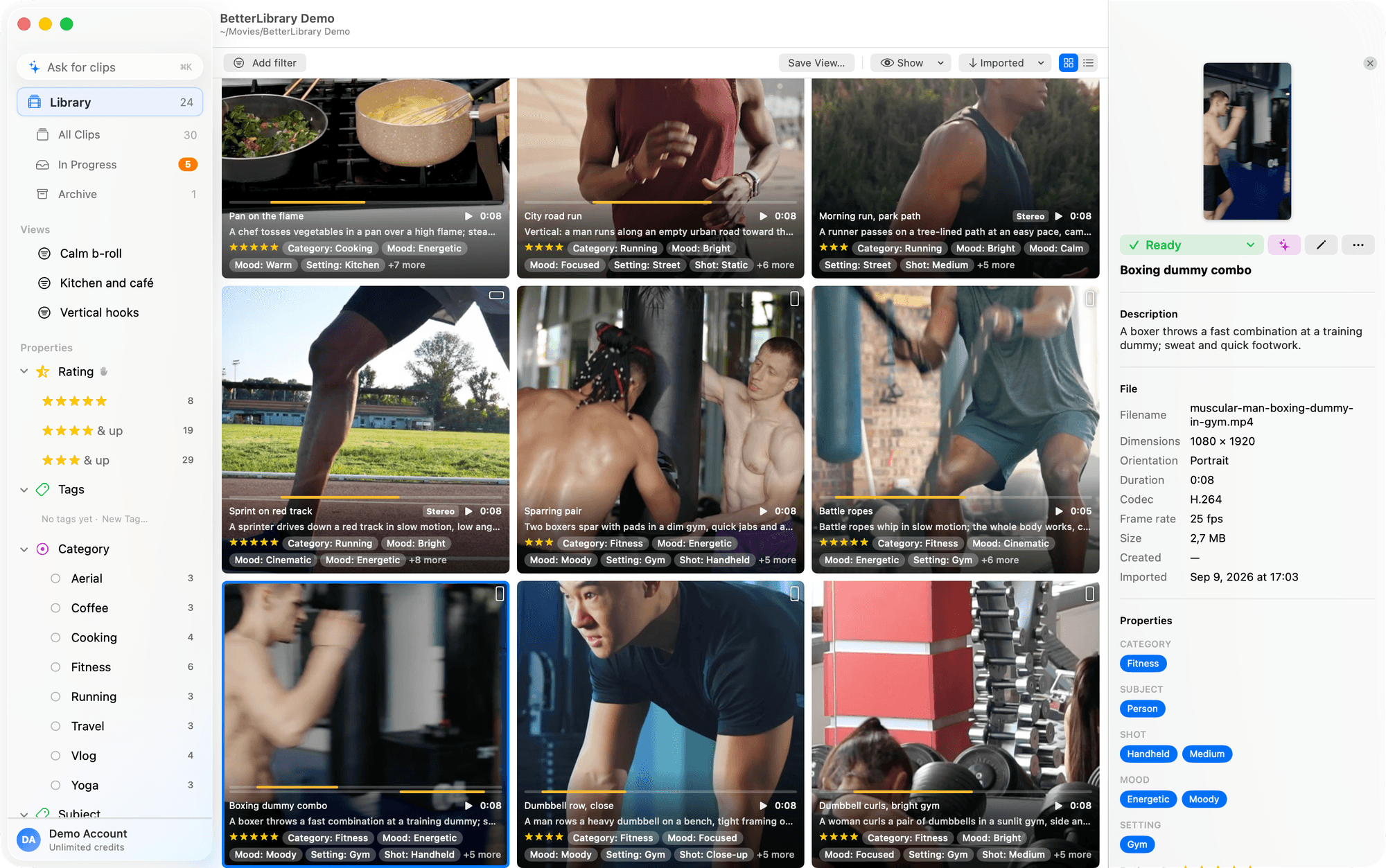
You know you shot it. You cannot find it.
Every take you ever made is in a camera roll with no names and no tags, or on the Mac in Untitled folder 3 next to IMG_4821.MOV and three copies of the same take. The search does not know your work, so the good take from March is gone until you scrub for it.
The camera roll
Thousands of clips in date order, a thumbnail each, and a search that has never heard of your client, your gym or your golden hour.
The messy folder
Footage lands on the Mac and stays where it landed. Names are numbers, folders are guesses, and every take exists in three places.
The library you cannot trust
Even a sorted folder does not say which take was the keeper, where the good three seconds are, or what you already used.
Built for large libraries.
Thousands of clips across years of shoots, in one window that stays fast and one folder you own.
A whole card in one gesture
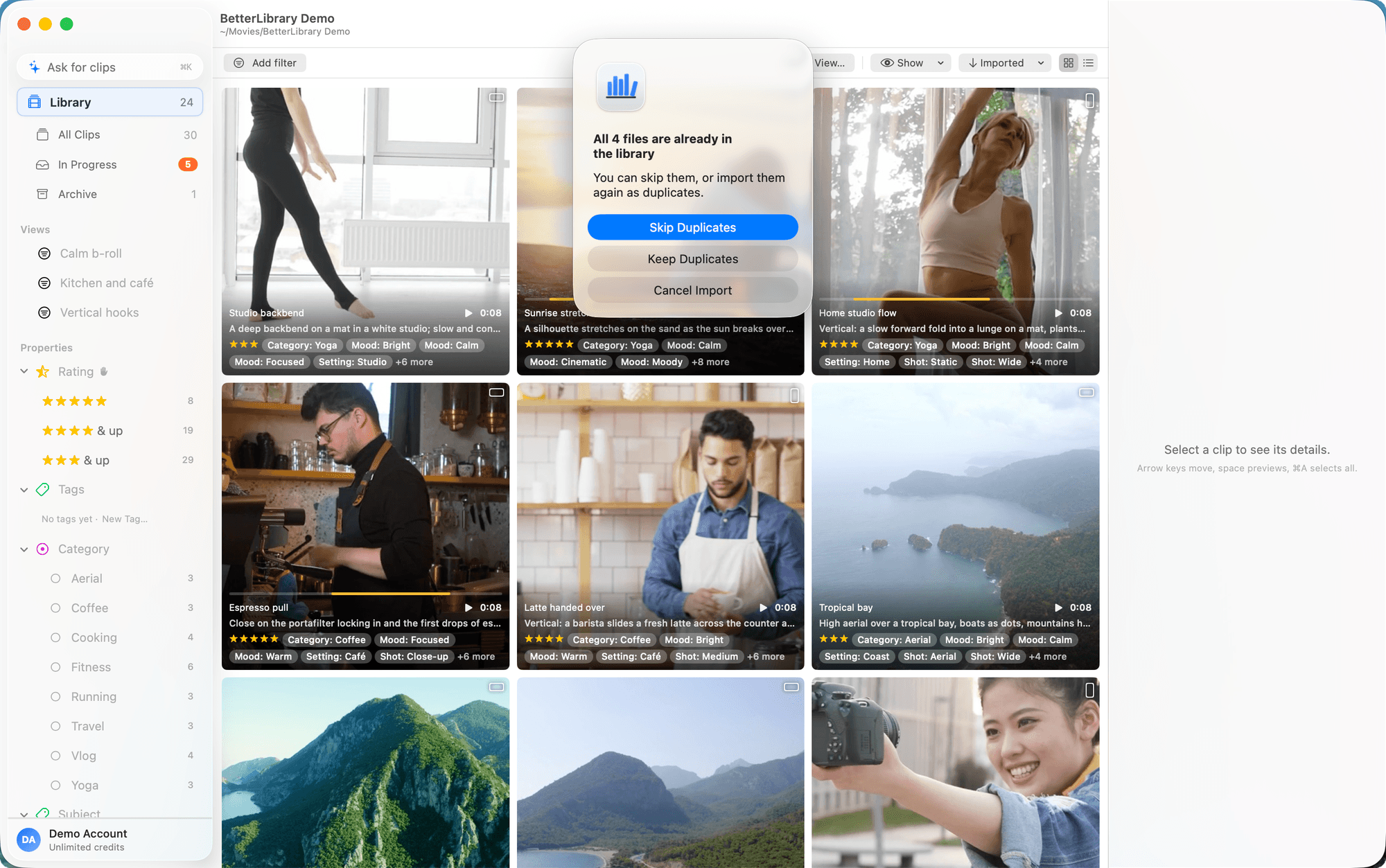
Drop a folder, paste from Finder, or import. Folders are scanned recursively, duplicates are caught by content fingerprint before anything is copied, and originals are filed into the library by year and month. Your source files are never touched.
- Import the card twice. Duplicates get one Finder-style question: Skip, Keep, Cancel.
- Any format your Mac plays. iPhone HEVC, HDR, ProRes, drone and mirrorless files preview natively.
- One sheet per batch sets shared properties like Location or Client and whether to tag with AI on landing.
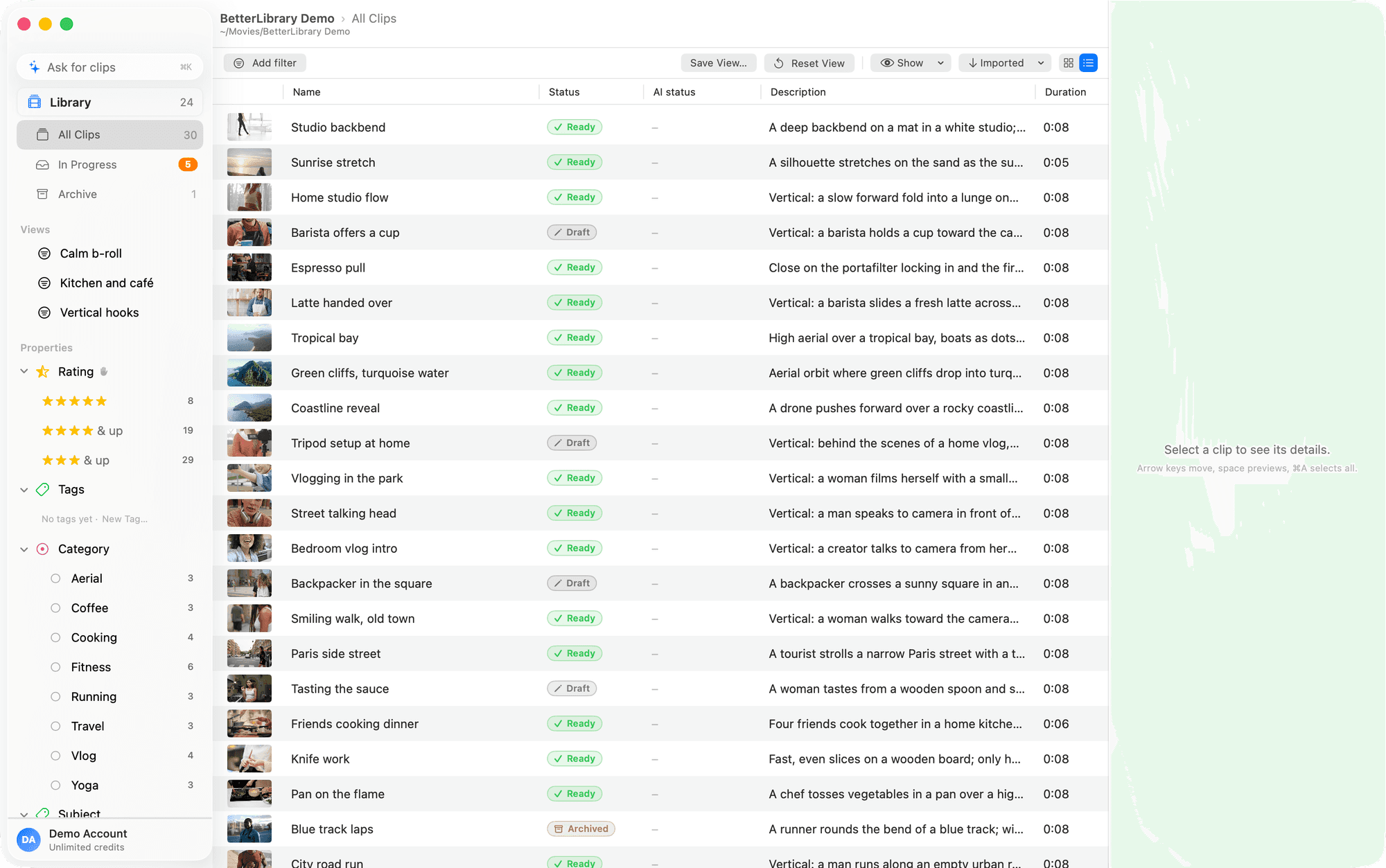
Four shelves, two layouts, every count
Library holds what you approved. In Progress is the to-do list. Archive sets things aside. All Clips is everything. Each shelf remembers its own layout, sort and columns, and the sidebar shows the count of every shelf, tag and view.
- Grid or table, sortable by imported, created, name, duration, size, dimensions or relevance.
- Finder-style selection, hover-to-play previews, Quick Look with Space, multiple windows over one library.
- The In Progress count is the number of decisions left.
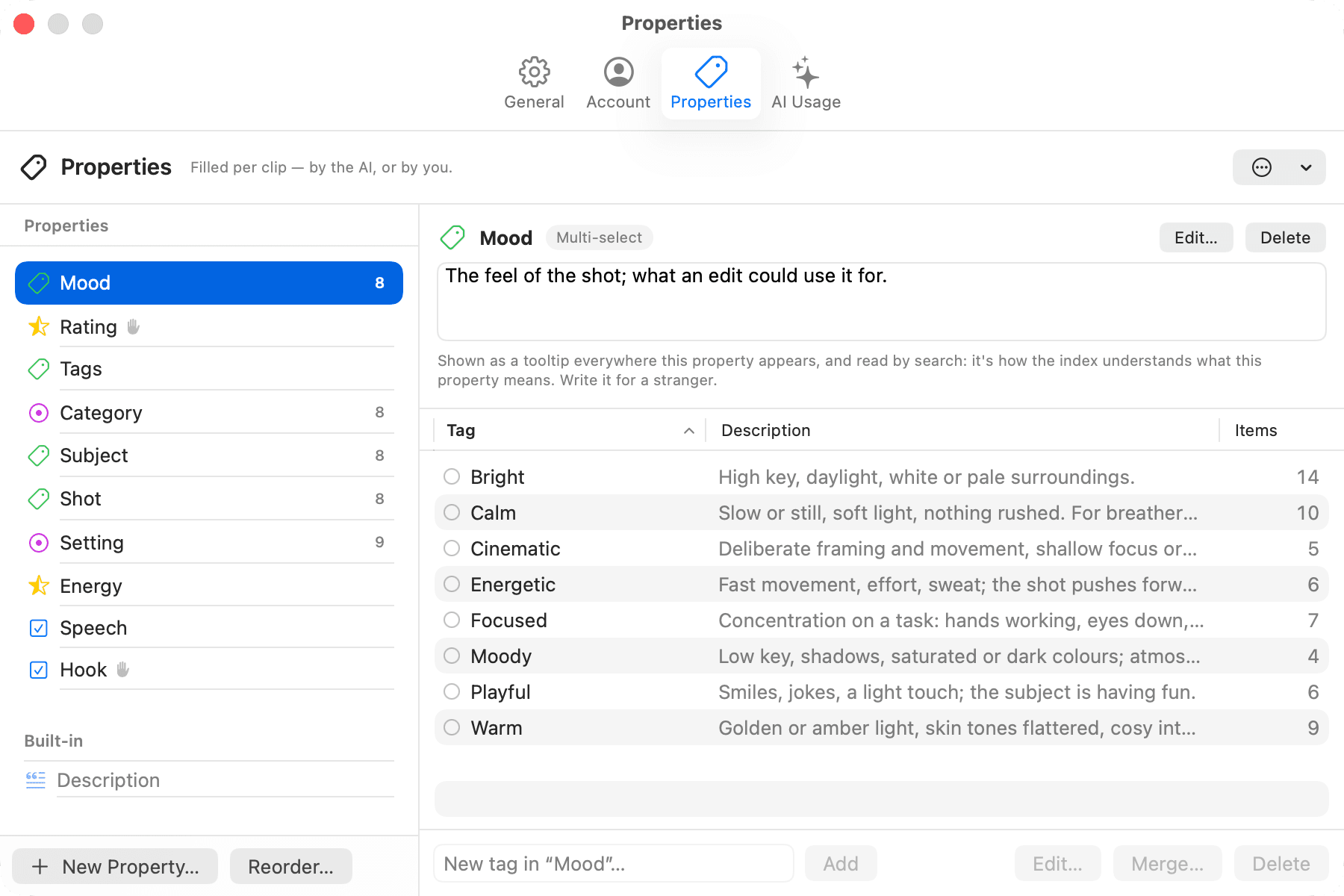
Tag it your way.
The schema is yours: as many properties as the work needs, as detailed as you want, and filters that find any slice of the library.
Your own properties, Notion-style
Five types: multi-select, single-select, yes/no, a 1 to 5 scale (stars, hearts, flames, bolts, dumbbells, dots or a number), and text. Every tag carries a description that says when it applies. Each property is AI-filled or manual, and the model never touches a manual one.
- A property manager that creates, renames, re-describes, reorders and merges tags with every clip keeping the survivor.
- Six ways to apply a tag: the inspector, a drag onto a sidebar tag, bulk edit, a batch on import, a view, or Claude Code.
- Your schema is a file. Export Properties writes properties.jsonc; Import previews every rename, merge and deletion first.
Filters that nest, views that remember
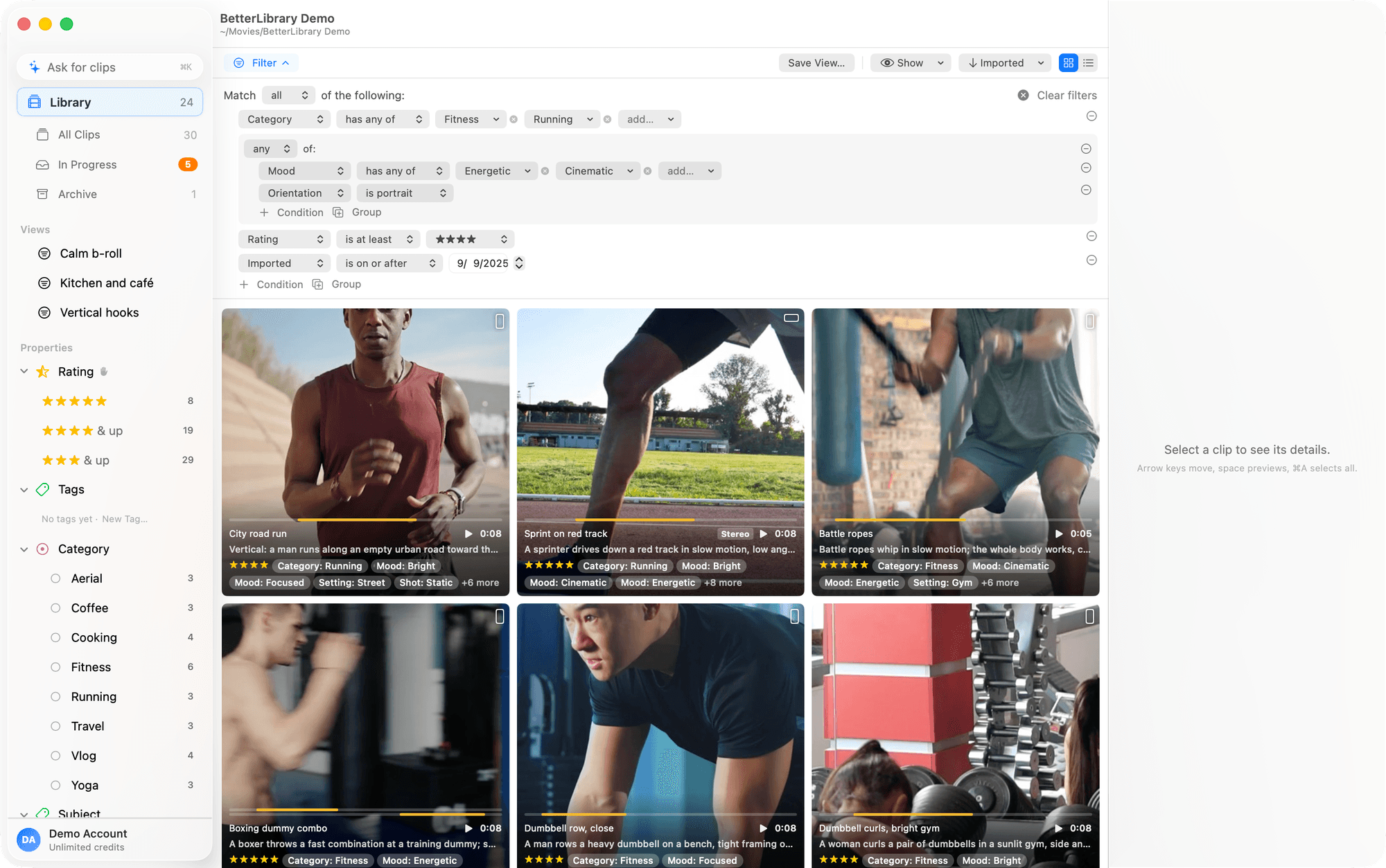
All-of and any-of groups, nested as deep as you like: tags, yes/no including not set, scale thresholds, text in three modes, orientation, dates, status, AI status. Each condition is a chip you can drop. A view saves the filter plus the look.
- Drop clips onto a view and the app offers to tag them so they would match.
- Bulk edit in words: ⌘E spells out every change to the selection before it applies.
- Three text modes. Fuzzy forgives typos, Includes is literal, Meaning finds synonyms on-device.
AI tags, highlights and finds.
The model does the tedious part in your vocabulary. You read, fix and approve with one key.
Tagging lands in your words
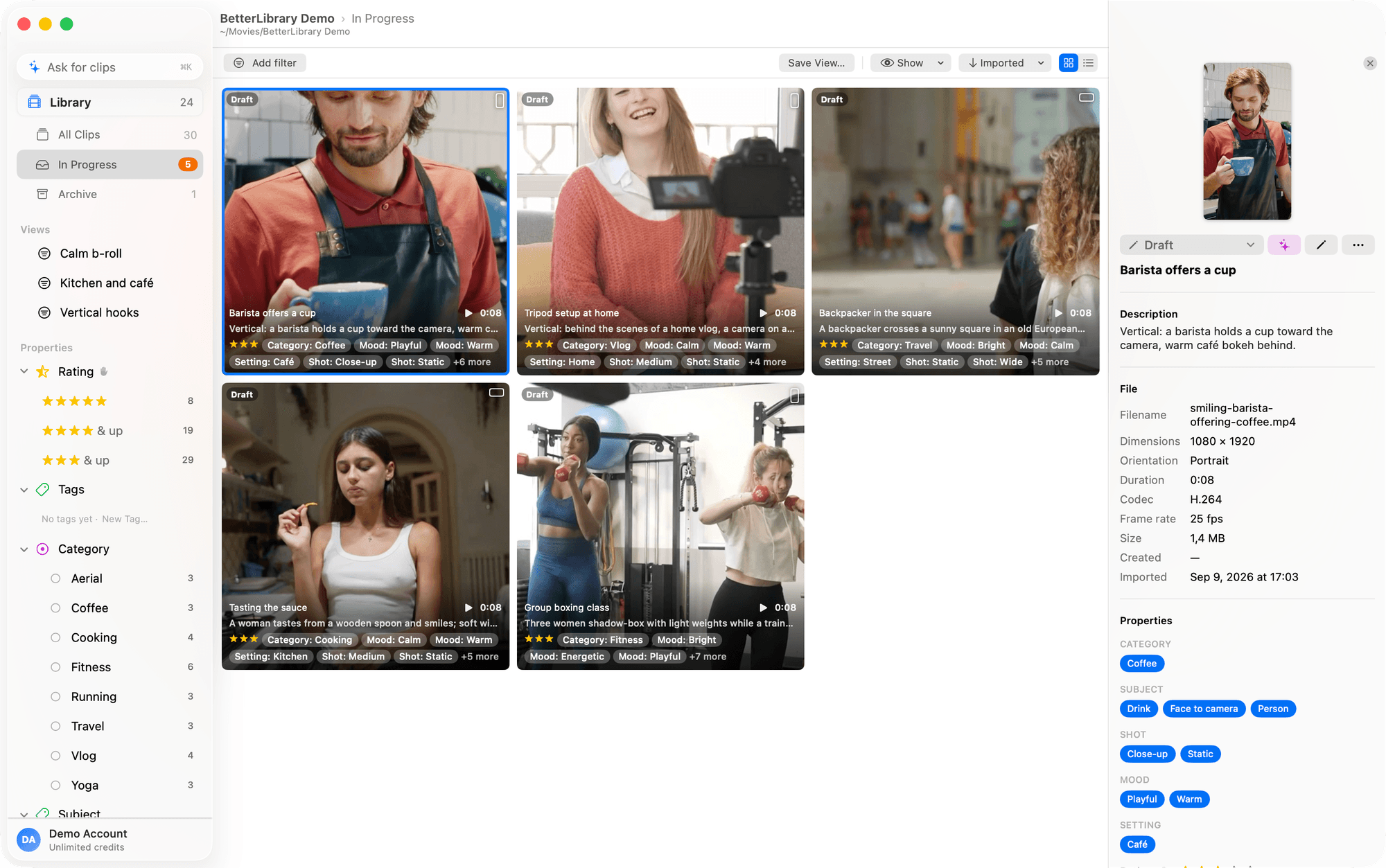
For each clip the model writes a short name and a one-line description, fills your AI properties from your tag descriptions, and drafts a few named highlights: the moments inside the clip worth keeping. It can only choose from tags you defined, so nothing is invented and the taxonomy never drifts.
- The AI never marks Ready. It fills; you approve with ⌘R. Approving a row is ↓ ⌘R ↓ ⌘R.
- A queue that survives relaunch, with Cancel and Retry per clip and a progress dial in the sidebar.
- Every call logged with model, tokens, duration and cost, in the library folder.
Ask for the shot in a sentence
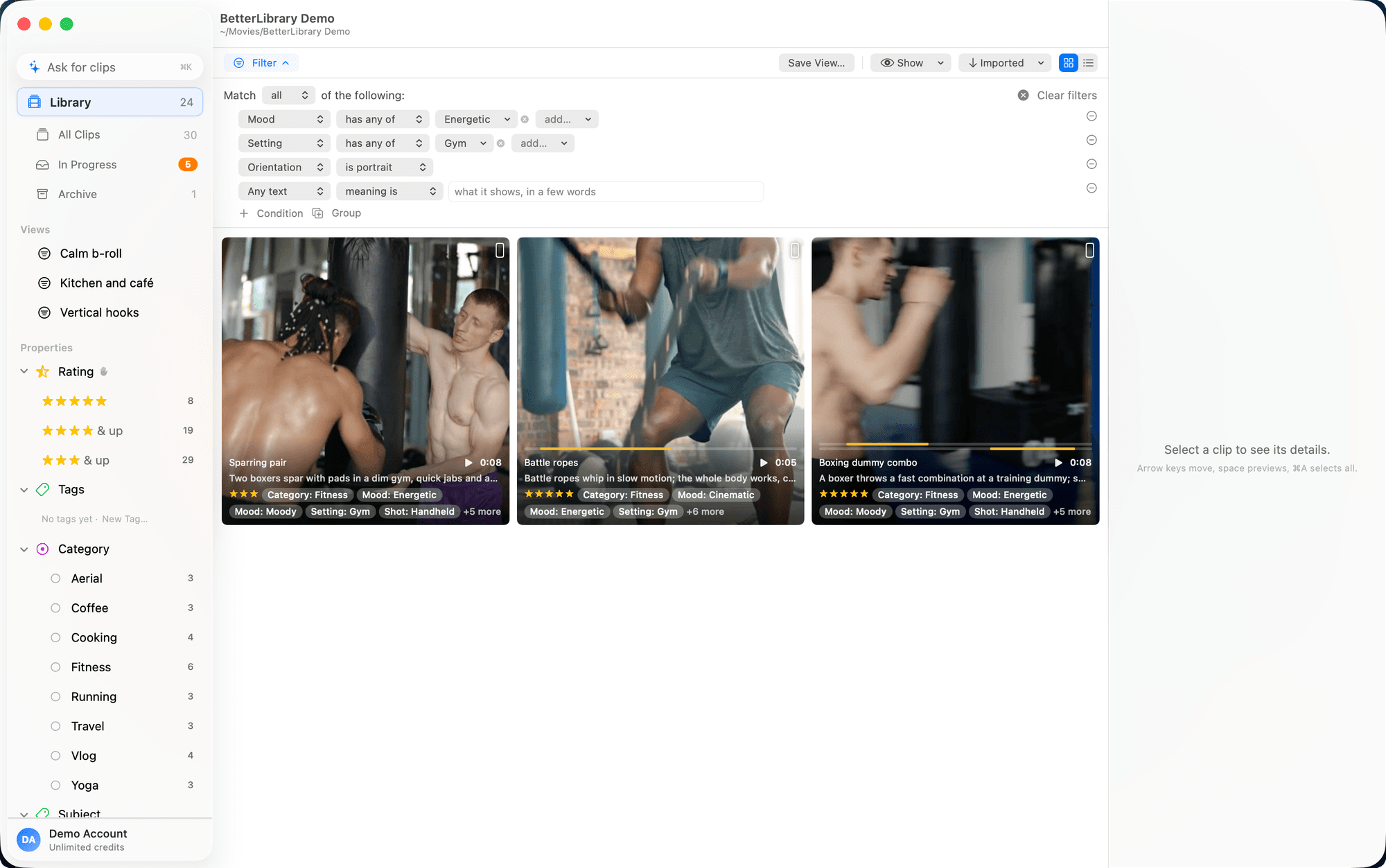
“Portrait gym clips from this summer, energetic, newest first.” Press ⌘K, type that, and it comes back as a real filter: tags, dates, orientation, status, a meaning search for the words with no tag, and a sort. You see the filter it built, change it, and save it as a view.
- An answer you can trust, because it is a filter, not a black box.
- Meaning search stays on the Mac: a bundled sentence model, no key, no network.
- Ask sends your sentence and your schema, never footage.
Highlights mark the moment
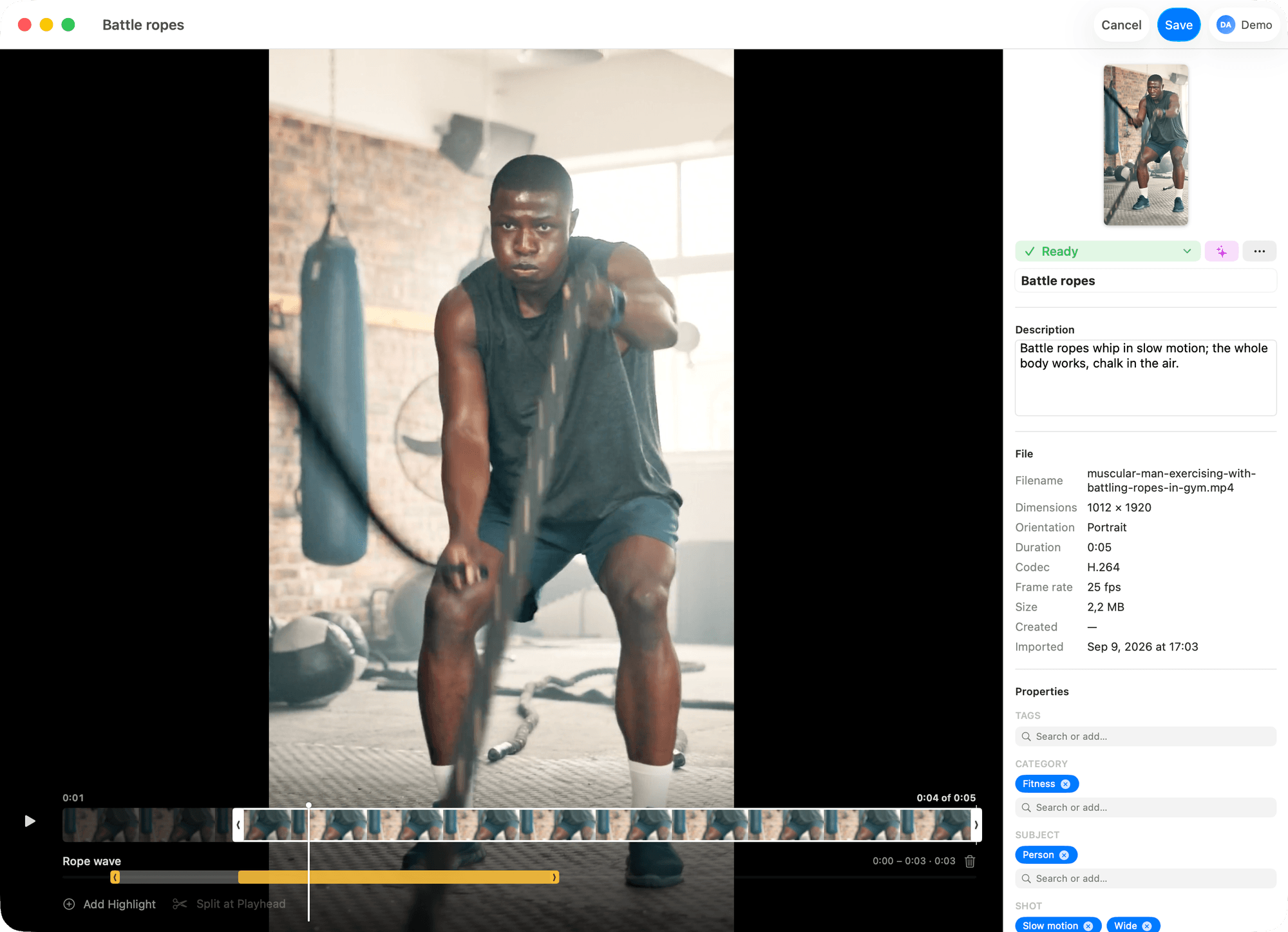
Open a clip and the drafted highlights sit under the strip, each a named in and out point that never touches the file. Rename one, drag its edges, add your own at the playhead with ⇧⌘H. S turns on skimming, like Final Cut.
- Edges snap to the playhead, other rows and the clip's ends; ⌥ drags freely.
- Lossless trim cuts dead air off the file itself on keyframes, after asking.
- Split at Playhead makes two clips, each keeping its name, properties and highlights.
Filters, searches and tags from a prompt.
Every library carries a CLAUDE.md that tells Claude Code what the library can do, under the same rules as the window. Open Claude Code in the folder and describe the view you want; it builds the filter, saves it, and the sidebar updates while you watch.
- >Make a view of portrait clips rated 4 flames or more from this year, newest first.
- >Tag everything from Tuesday's shoot and describe each clip in one line.
- >Find the ten most cinematic drone shots from spring and export the best five seconds of each.
 BetterLibraryRead the library's guide: nine properties, Rating is a 1 to 5 scale.BetterLibraryBuilt the filter: orientation portrait, Rating at least 4, imported this year, sorted by newest.BetterLibrarySaved it as the view “Portrait, this year”. It matches 14 clips and is in the sidebar now.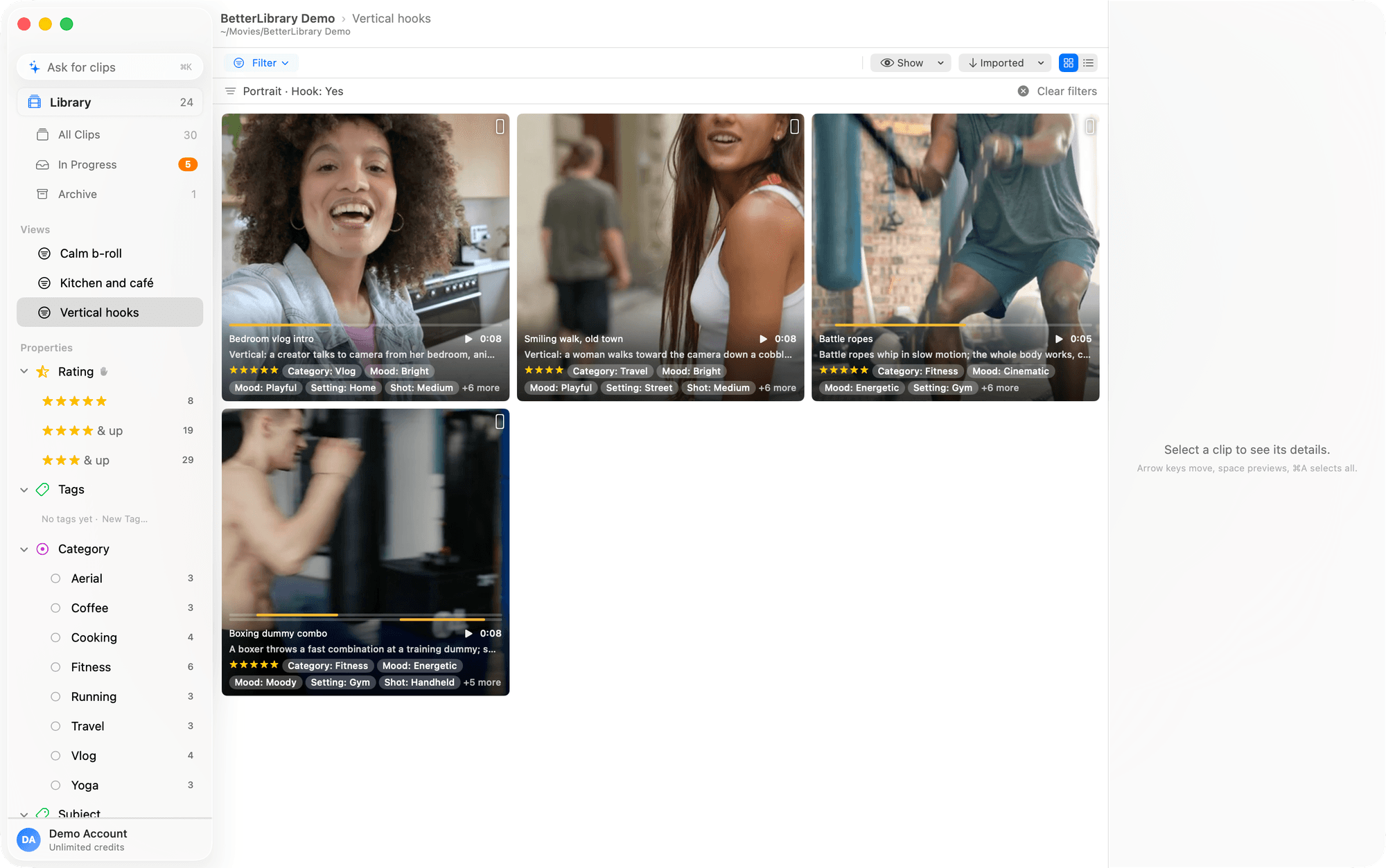
The moment leaves as a real file.
A highlight is two timestamps and a name in the index; the file is untouched until you drag. Then BetterLibrary remuxes the range without re-encoding and hands over a file named after the moment. The BetterEdits timeline, a Final Cut event, Finder, Messages: anything that accepts a drop.
- Lossless. Samples are copied, not re-encoded, in any codec your Mac plays.
- Named after the moment. “Kettlebell swing, wide.mov”, not IMG_4821 again.
- Export to a folder, the share sheet, or ⌘C to paste files into Finder.
Library and settings
A library is an ordinary folder you own; everything the app knows lives inside it.
- A folder you own
library.db (an SQLite index), originals/ filed by year and month, thumbnails/ and renders/ caches, settings.jsonc and a CLAUDE.md. No account, no cloud.
- Several libraries⌘O
One library is open at a time. Keep one per client or per year and switch with File > Open or Create Library; File > Open Recent lists the ones you have used.
- Portable on any drive⇧⌘W
Paths in the database are relative to the folder. Close the library, move or copy the whole folder to an external SSD, a NAS share or a synced folder, and reopen it.
- Caches you can delete
thumbnails/ and renders/ are caches; deleting them costs time, not data. library.db and originals/ are the library, so those are what you back up.
- Settings travel with the footage⌘,
Almost every setting belongs to the open library and is stored in its settings.jsonc, a JSON file with comments that is safe to edit by hand. Keys the app does not know are kept.
- Every key documented
geminiApiKey, geminiModel, aiGatewayApiKey, aiGatewayModel, aiConcurrency (1 to 8, default 4), autoTag, libraryDescription, modelPricing, the audio choices, each shelf's look and importDefaults.
- macOS 14.4 and later
Apple silicon or Intel. On macOS 26 the app takes the Liquid Glass look; earlier systems get the same features in the classic style.
Importing
Getting footage into a library, what happens to each file, and how duplicates are handled.
- Drag, paste or import⌘I
Drag files or folders from Finder onto the window (folders are scanned recursively), paste files copied in Finder, or use File > Import Files, which accepts files and folders.
- One sheet per batch
Set properties on everything in the batch (a Location, a Client, a yes/no) and choose whether to tag it with AI once it lands. The last choice is remembered per library.
- Duplicates caught by content
Files are fingerprinted before anything is copied. If some are already in the library you are asked once, Finder-style, whether to Skip them, keep them as duplicates, or cancel.
- Originals copied and filed
Each video is copied into originals/<year>/<month>/ by capture date. Your source file is untouched, and you can delete it once the import has finished and the count looks right.
- Metadata and poster frame
Dimensions, duration, capture date, camera make and model, lens, codec, frame rate, HDR, audio channels and tracks are read. The poster comes from the first frame, so hover playback matches the still.
- Any format macOS plays
Video only: MP4, MOV, M4V and every codec AVFoundation decodes, including iPhone HEVC, HDR and ProRes, previewed natively with no transcoding. Images and audio files are skipped.
- Progress and failures
One batch runs at a time. A progress bar at the bottom of the window shows the count and offers Cancel; files that fail are listed when the batch finishes.
- Rebuild Metadata
Library > Rebuild Metadata re-reads every clip's file and refreshes its technical metadata and poster frame. Names, descriptions, properties and highlights are not touched.
The library window
Sidebar, grid and table, inspector, and the things you can do to a selection.
- Four shelves
Library (Ready), In Progress (New and Draft), Archive and All Clips, each with a count in the sidebar. Every shelf remembers its own layout, sort and columns; Reset View restores the default.
- Grid or table
Sort by Imported, Created, Name, Duration, File size, Dimensions, or Relevance while a search is active. The Show menu picks which properties appear as table columns and card tags; long text can wrap.
- Finder-style selection⌘A
Click selects, ⌘-click toggles, ⇧-click extends, arrow keys move the selection with ⇧ to extend, Esc clears. Hovering a card plays the clip, muted and looping.
- Quick LookSpace
Space opens a Finder-style Quick Look window that follows the selection; ← and → step through the grid without closing it. Space or Esc closes. Double-click opens the clip in its own window.
- The inspector
One clip: name, status, file facts, description, every property and its highlights. Several: what they share, plus Tag All with AI, Tag Empty with AI, Reset, Share, Export to Folder and Move to Trash.
- Bulk edit in words⌘E
Select several clips and press ⌘E. The bulk edit sheet spells out every change it will make before you apply it.
- Multiple windows⌘N
⌘N opens another window over the same library, with its own shelf, selection and filters. Menu commands act on the window in front.
- Trash and Reset⌘⌫
Move to Trash removes clips after a confirmation; the originals go to the macOS Trash. Reset wipes a clip's name, description, properties and highlights, takes back any AI request, and keeps the file.
Statuses and approval
New, Draft, Ready and Archived; the shelves built on them; and why the AI never changes one.
- New, Draft, Ready, Archived
New is imported and untouched. Draft means something changed, by hand or because an AI answer landed. Ready is approved. Archived is set aside, kept, and out of the way.
- Approve with one key⌘R
Select one or more clips and press ⌘R, or use the status control in the inspector or the context menu. Approving a row of drafts is ↓, ⌘R, ↓, ⌘R.
- Any direction, nothing deleted
The inspector's status control goes back to Draft or out to Archive. Ask Claude Code to change one and it uses the same control.
- The AI never changes a status
Its only effect is that a New clip becomes a Draft when its answer lands. It never marks a clip Ready or Archived, and it never touches a manual property. Approval is a person's job.
- A separate AI axis
What the AI is doing to a clip (nothing, pending, in progress, failed) is its own thing. It shows in the inspector with Cancel and Retry, in the sidebar's progress dial, and as a filter condition.
- The count of decisions left
In Progress's sidebar count is the number of clips still waiting on you. Ready is the settled state, so it is the one status cards do not show as a tag.
Properties and tags
Describe footage the way you think about it; the same vocabulary is what the AI is allowed to use.
- Five property types
Multi-select and single-select (which hold tags), yes/no (yes, no or not set), a 1 to 5 scale drawn as stars, hearts, flames, bolts, dumbbells, dots or a number, and text (a line or several).
- AI or manual
AI properties are filled by the model in place of what was there. Manual ones (Client Approved, Location, anything only a person knows) are written only by people, or by Claude Code when you ask it to.
- Tag descriptions steer the model AI
The description is what the model reads to decide when a tag applies: "Vibe: Energetic. Fast movement, loud music, high effort." It can only choose from tags you defined; it cannot invent one.
- The loose Tags property
Bare keywords typed without a property go into Tags, a multi-select bucket for words that have not earned their own property yet. Delete a property and its tags move here instead of disappearing.
- The property manager⇧⌘T
Create, rename, re-describe, reorder, or switch a select between single and multi. Add, rename, colour or move tags, and merge several into one with every clip keeping the survivor.
- Properties as files
Export Properties writes a properties.jsonc and an INSTRUCTIONS.md for editing by hand or by an agent. Import Properties previews every rename, new tag, merge and deletion before it applies.
- Six ways to apply a tag
Type in the inspector (unknown names are created on the fly), drag clips onto a sidebar tag or a view, bulk edit, set it for a whole batch on import, or ask Claude Code to tag a set of clips for you.
- Counts in the sidebar
Every property lists its tags with how many clips carry each on the current shelf. Click a tag to show those clips; click a scale row for that many and up.
Clip page and highlights
A clip in its own window: marking the moments worth keeping, and the two lossless cuts that change a file.
- A clip in its own windowSpace
Double-click opens the player over the highlight timeline, with the inspector beside it. Space plays and pauses; click a highlight row and playback stays inside its range.
- SkimmingS
Press S and moving the pointer along a strip scrubs the video, like Final Cut.
- Highlights never touch the file
A highlight is a named in-point and out-point that lives in the index. A clip can have as many as you like; the AI marks a few when it tags a clip, to be treated as a first draft.
- Add at the playhead⇧⌘H
Add Highlight puts a row at the playhead. Drag its edges to set in and out; edges snap to the playhead, other rows and the clip's ends, and ⌥ drags freely. The name becomes the render's filename.
- One draft, one Save⌘S
⌘E turns the whole page into a draft: the properties in the inspector and the rows on the timeline go in one Save (⌘S) or one Cancel (Esc).
- Lossless trim
Pull the clip's own handles in and Save; after "Trim to this range?" the file is cut to the kept range on keyframes. Highlights inside survive, shifted; highlights outside are dropped.
- Split at Playhead
The scissors ask first, then make two clips, before and after the playhead, each with its name, properties and the highlights that fall inside it. The cut lands on the nearest keyframe.
Search, filters, Ask and views
Three ways to find a clip: type a few words, build a filter, or describe it in a sentence, then keep the good ones.
- Search in three modes⌘F
Matches names, descriptions and highlight names. Fuzzy forgives a typo or two ("coastlne" finds coastline), Includes is literal, and Meaning finds synonyms with a bundled on-device sentence model.
- The filter builder
All-of or any-of conditions with nested sub-groups: text in any mode, select any/all/none of, yes/no including not set, scale at least/exactly/at most, Orientation, Created, Imported, Status and AI status.
- Chips and relevance
Each active condition is a chip under the toolbar; click its x to drop it. While text is active the grid sorts by Relevance, and the footer offers looser or stricter matching.
- Ask in a sentence⌘K AI
"portrait gym clips from this summer, energetic, newest first" comes back as a real filter: tags, dates, orientation, status, a text search and a sort. Words with no tag become a meaning search.
- An answer you can edit
The filter bar shows exactly what was built; change any condition, add one, or drop it. An ask that says nothing about status searches the Library; "drafts with kettlebells" searches In Progress.
- What Ask sends AI
Your sentence and the names and descriptions of your properties, tags and views. No footage, no thumbnails.
- Views keep filter and look
Save View stores the filter with grid or table, sort and columns. Change an open view and the bar offers Update or Reset Filters. Recent asks are listed under the field to run again.
- Drop clips onto a view
Drag clips onto a view and BetterLibrary offers to tag them so they would match: the view's tags come pre-ticked and a scale minimum carries over. Nothing changes until you confirm.
AI tagging and cost
A first pass from our AI in your own vocabulary.
- What tagging fills AI
A short name, a one-line description, values for your AI properties chosen from your tags, and a few named highlights. All of it replaces what was there; manual properties are never touched.
- Your key, your prompt AI
"About this library" is the prompt's opening line; the rest is shown read-only.
- Three ways to ask for it AI
Tag with AI after import, on by default once a key exists. Tag All with AI or Tag Empty with AI on a selection, where Tag Empty only touches clips with nothing filled yet. Or ask Claude Code to queue a batch.
- A queue that survives relaunch
Several calls run at once (aiConcurrency, 1 to 8). Pending and in-progress clips show Cancel, failures show their reason with Retry, and rate limits retry on their own. Editing a queued clip waits for the answer.
- What is sent AI
A downscaled copy of the clip is uploaded to our AI service along with the prompt. Nothing is sent for clips you do not tag.
- Every call logged
Settings > AI Usage lists each tag or ask with its clip, model, input and output tokens, duration and cost, with totals at the top. The log lives in the library folder and travels with it.
- Prices you control
Cost is computed at call time in USD per million tokens. The app ships today's list; modelPricing in settings.jsonc overrides it. Uploaded video dominates the bill; an ask costs a fraction of a cent.
- Works without any AI
Without keys, tagging and asking are simply off. Import, statuses, properties, highlights, search, filters, views, export and Claude Code all work.
Export, drag and audio
Getting footage out: into Final Cut, into a folder, or to someone else, with the audio the way you need it.
- Drag into Final Cut, or anywhere
Drag from the grid, table, clip page or inspector onto a Final Cut event or timeline, Finder, or any app that accepts files. A clip drags its original; a highlight drags a trimmed copy named after it.
- Passthrough remux
Video and audio samples are copied, not re-encoded: fast, lossless, any codec your Mac plays. Cuts land on keyframes, so a range can start a fraction before the marked in-point.
- Renders cached, disposable
A highlight's file is made on its first drag and kept in renders/. It is dropped when the highlight moves, the clip's file changes or the export audio setting flips, and rendered again on the next drag.
- Export to Folder
Copies every selected clip's original to a destination. For two-mic recordings the panel offers original tracks, both mics merged to mono, left mic only, or right mic only.
- Share sheet
AirDrop, Messages, Mail and the rest of the macOS share sheet for the selected clips, from the inspector or the context menu.
- Copy and paste⌘C
⌘C puts the selected files on the clipboard for Finder. ⌘V imports files copied from Finder, or pastes one clip's name, description, properties and highlights onto another, one checkbox per field.
- Mono for two-mic recordings
Play > Consolidate to mono sends every channel to both speakers while previewing, on by default, file unchanged. Export > Consolidate to mono writes one AAC mono track; video is copied sample for sample.
- iPhone preferred audio track
Choose the stereo mix, the spatial capture, or an external mic's mono track as the default. Applied on import and across the open library; only the QuickTime header is rewritten, never the media.
Claude Code
A guide written into every library, so Claude Code can work it with the same rules as the window.
- A guide in every library
The app writes a CLAUDE.md into every library and refreshes its own section each time the library opens: what each file is, how the library thinks, clips, statuses, properties, tags, highlights, the AI queue and search, plus the working rules.
- Open Claude Code, ask in a sentence
Open the library folder in Claude Code and say what you want. The agent reads the guide and works the library: find clips, set names and descriptions, add and remove tags, mark highlights, import, export, queue AI tagging.
- Same rules as the window
The agent works through the same code as the window, so statuses, single-select rules and tag re-filing behave identically. After every change an open app reloads at once.
- Your notes stay
Below the app's section, "Notes about this library" is never rewritten. Put the house rules there: what the footage is for, who approves clips, how to name highlights, which tags are off limits.
- Safe by design
Reset and delete are the only destructive actions, and the guide names them. Deletes go to the macOS Trash. Everything else is a status or a tag you can change back.
- The AI never approves
Claude Code can queue clips for AI tagging, but the open app runs the queue and the model can only move a clip from New to Draft. It never marks one Ready or Archived; the guide tells it not to.
- Nothing on the Mac to leak AI
There are no API keys on this Mac. Model calls go through your BetterApps account and spend credits from your plan, the same as tagging from the window.
- Any agent that reads the guide
Claude Code is what we build for and test with, but any agent that reads a CLAUDE.md-style guide works the library the same way.
A library is a folder. Everything else is a choice.
No cloud, ever
The library is a folder you pick: your originals, an SQLite index, thumbnails, and a settings file you can read. Move it to an SSD, back it up, open it on another Mac.
AI only when you ask
Tagging sends a downscaled copy of a clip to our AI service. Asking sends your sentence and your property names. Turn either off and nothing leaves your Mac.
Search stays local
Fuzzy and literal search, and the meaning index, run on your Mac with a bundled model. No key, no network, no upload.
BetterLibrary, on its own.
AI calls spend the credits your plan includes; the app shows you the cost of every call.

The clip library. Find the shot you mean.
- Unlimited libraries and clips
- AI tagging and Ask for clips
- 2,400 AI credits a month, about 200 tagged clips
- Top up any time with credit packs
- Highlights, lossless trims, drag to any NLE
- Claude Code, with a guide written into every library
Each app is its own subscription with its own credits and its own 7-day trial. Use one, or both.
Questions people ask first
- How many clips can it hold?
- The index is a single SQLite file and thumbnails are cached, so a library grows to the size of the drive it sits on. Keep one library per client or per year if you like; the app opens one at a time and each remembers its own layout.
- Can I bring in footage from the camera roll?
- Bring in anything your Mac plays, from anywhere: a phone, a card, a drone, a mirrorless, an old drive. Drag the files or the folder onto the window and they are copied into the library, duplicates skipped.
- Does BetterLibrary change my video files?
- Imports are copies and stay untouched. Highlights are timestamps in the index. The two exceptions are deliberate and ask first: pulling a clip's trim handles in cuts the file, and Split at Playhead makes two files out of one. Both are lossless remuxes on keyframes.
- What does the AI actually see?
- Tagging uploads a downscaled, silent copy of the clip to our AI service, along with your property and tag descriptions. Asking sends your sentence and the names of your properties, tags and views. The exact prompt is in Settings.
- Does it work with Final Cut, Premiere or Resolve?
- Yes. What leaves BetterLibrary is an ordinary file, so anything that accepts a file from Finder accepts one from BetterLibrary. BetterEdits accepts the drag directly onto its timeline or a placeholder.
- Can I use it without any AI?
- Yes. Without a subscription, tagging and asking are simply off. Import, statuses, properties, highlights, search, filters, views and export all work.
- Which Macs?
- macOS 14.4 or later, Apple silicon or Intel. On macOS 26 the app takes the Liquid Glass look; earlier systems get the same features in the classic style.
BetterLibrary, in practice.
- WorkflowHow to Export Vertical Video From Final Cut Pro (9:16)Export vertical video from Final Cut Pro: set a 1080×1920 project, reframe horizontal footage, keep HDR, and export settings for Instagram and TikTok.
- BetterLibraryHow to Organize Video Clips on Mac So You Can Find ThemHow to organize video clips on Mac with folders by shoot date, four statuses, a tag vocabulary and highlights instead of cuts, in Finder or BetterLibrary.